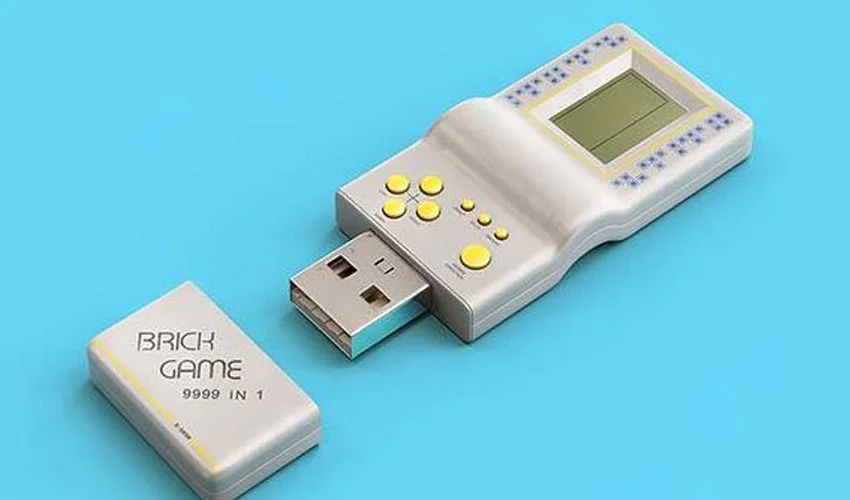
Gamers love compact retro consoles, but you don’t need to spend a lot on a Raspberry Pi or handheld device. With just a USB flash drive, a gamepad, and free software, you can build a fully portable gaming console that works on almost any PC. Here’s how to do it.
Install Batocera OS on Your USB Drive
Batocera is a free, open-source operating system designed for retro gaming emulation. Here’s the process:
- Download Batocera (Windows x64 version) from its official website.
- Use BalenaEtcher to flash Batocera onto your USB drive.
- Once flashing is complete, ignore any pop-up windows.
Boot From Your Flash Drive
To run Batocera, you’ll need to boot your PC from the USB drive.
- Method 1 (Windows): Go to Recovery Options → Advanced Startup → Restart Now → Use a Device → and select UEFI: Removable Device.
- Method 2 (BIOS): Restart your PC, press F12 (or your system’s boot key), and select UEFI: USB.
Load and Play Retro Games
Batocera supports emulators for consoles like PlayStation 2, PlayStation 3, Nintendo 3DS, and more.
- Press F1 in Batocera to open the file manager.
- Copy your ROMs into the correct ROMs folder.
- Add artwork by scraping game info (requires an internet connection).
Many free, legal ROMs come preloaded, but you can add your own for a full retro experience.
Tips for Best Performance
- Any mid-range PC can deliver 60fps in most games.
- Customize video and resolution settings per emulator for smoother visuals.
- Consider watching tutorials on Batocera Nation (YouTube) for advanced tweaks.
With this toolkit, you have a portable retro gaming library that fits in your pocket. It’s a budget-friendly, customizable, and travel-ready solution.